
Treat preparation, live play, and finishing as different jobs
A match record is easiest to trust when you make three deliberate transitions: prepare the correct roster and settings, record what happens during play, then inspect the record before finishing it. Starting early to test the controls and forgetting to stop creates a different problem from missing a substitution. Prevent both with a repeatable routine.
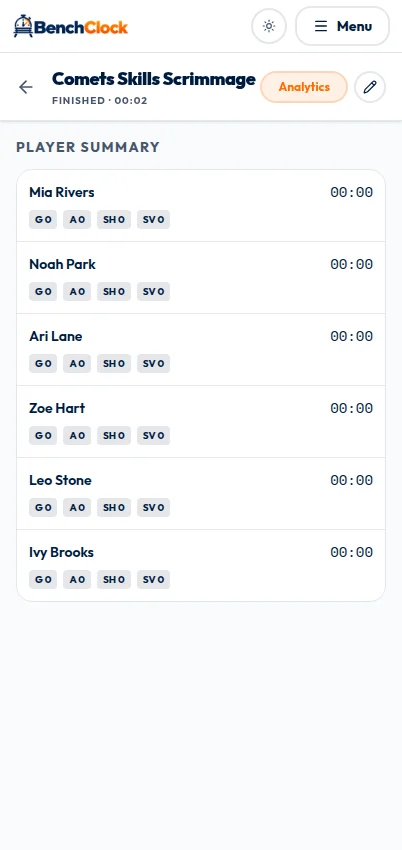
This walkthrough describes connected BenchClock matches, which require sign-in and appropriate team access. The account-free Free Tracker is useful for rehearsing the timing interaction, but it is not the same saved-match workflow. The screenshots include real prepared and finished connected views; they are separate synthetic demo matches, not before-and-after views of one record.
Prepare a named match while the clock stays stopped
Open your connected team and find Saved matches. A coach or assistant with access to an active team can select Prepare. Enter a recognizable match name, such as Saturday vs Harbor, and select Prepare match. The preparation dialog explicitly keeps the clock stopped, so creating the record is not the kickoff.
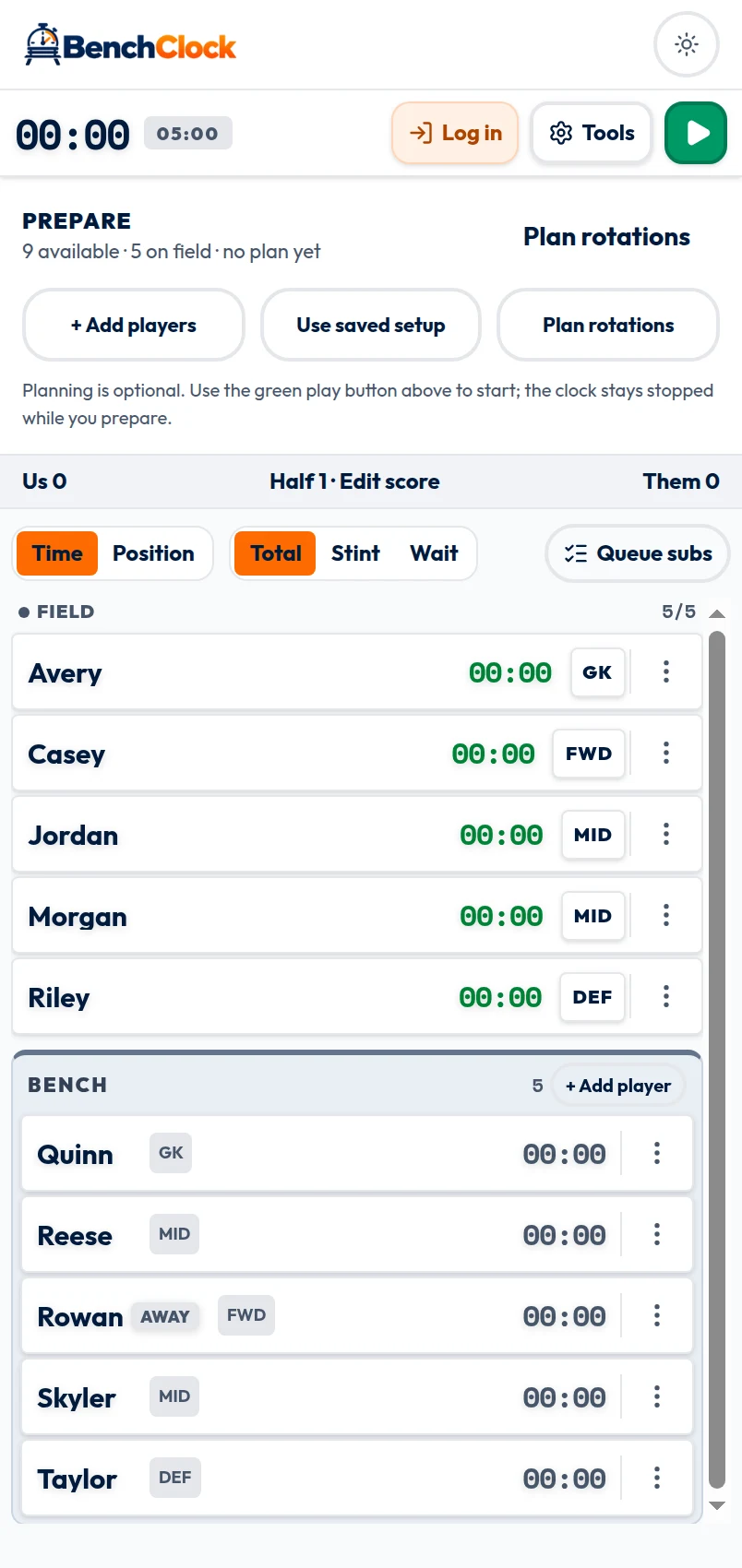
Check the prepared match's roster, sport, field capacity, and stat definitions before going live. In a connected match, the Prepare strip shows Use saved setup, Choose players / lineup, and Plan rotations. If the roster is empty, the match can exist, but its clock cannot start until a coach has added at least one team player.
Use this stopped stage for any spectator-sharing setup, after reviewing public player names. Sharing is optional and should not be your last task while players are waiting. A match title should identify the event without including private details or a live access token.
Do not start a real match merely to see whether the timer works. Practice with fictional local data first. Once a connected match is finished, the application preserves it as a dated, read-only summary, so experimental records are not an ideal place to learn every control.
Make one adult responsible for recording
Decide who watches the official match time, who decides substitutions, and who touches the tracker. One adult may do all three, but the roles should still be explicit. If two adults are present, a short instruction such as Alex off, Morgan on is less ambiguous than pointing toward the bench.
Set the opening active group before starting the clock. Check the player names, not just the count. A full set of seven active entries is still wrong if a player who is absent is included. Follow the competition's actual rules for when players may enter; the app does not authorize a substitution.
At the real start, use the play control, labeled Start match clock for accessibility. The match status distinguishes Ready, Live, Paused, and Finished. Watch the status after the action rather than assuming a tap succeeded.
Record substitutions at the actual change
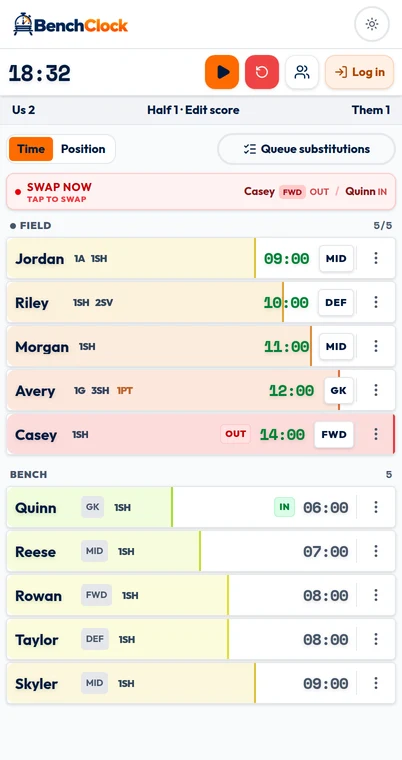
For a one-for-one change, select the outgoing Field player, then select the incoming Bench player to perform the swap. You can select in the opposite order too: select the Bench player first, then the Field player. Confirm the resulting groups after the action. The critical question is not whether you planned a change at minute eight; it is whether the players actually exchanged places then.
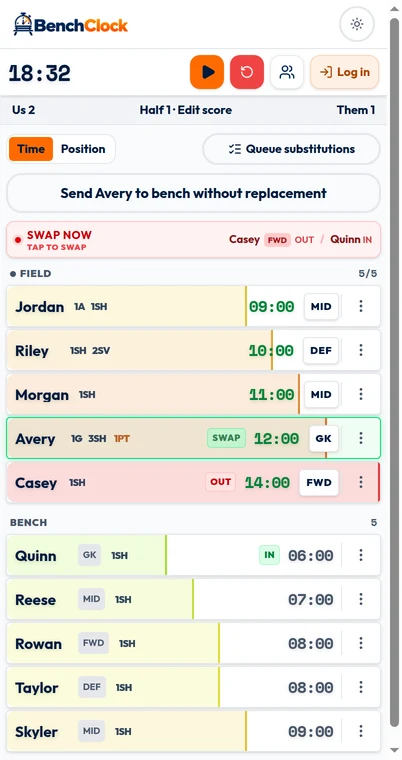
To record playing short, select a Field player without selecting a Bench replacement, then choose Send [name] to bench without replacement. The Field count decreases immediately. The same action is available from that player's detail panel. Use it only when it matches the real lineup—for example, after an injury, dismissal, or deliberate short-handed setup—not as a way to reserve a future substitution.
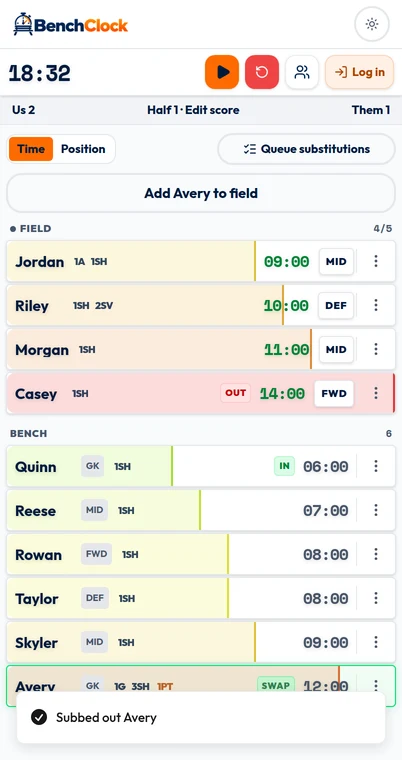
When the Field count is below its limit, select a Bench player with no Field player selected, then choose Add [name] to field. The detail panel also offers Add to field and shows the current count against the limit. The action is unavailable at the limit. This restores a vacant place without removing anyone; it is the matching operation after a short-handed interval, not a one-for-one swap.
For several one-for-one changes, Queue substitutions opens a manual Pending substitutions draft. Add and review outgoing/incoming rows, then choose Swap all only when those changes really occur. Pending rows do not run at a chosen match time and are not scheduled automation. They are page-local: refreshing or leaving clears the draft.
Consider a fictional example: Morgan replaces Alex at 08:00, but the recorder entered it at 09:00. Open Match tools, then Undo & correct. A valid correction preview can move that journaled event to 08:00 and recalculate player and position totals without changing score, stats, or the live clock. Older matches without reconstructable evidence cannot be rewritten; do not invent precision when the real time is unknown.
If positions are tracked, also check the incoming player's position. Being active and being assigned to goalkeeper or defender are separate facts. A correct total playing time can still have incomplete position information if the operator never updates the assignment.
Use the pause control when your chosen tracking convention requires the app clock to stop, then use play to resume. BenchClock does not automatically synchronize to an official clock. Decide before kickoff whether and how your record will reflect stoppages, and apply that convention consistently rather than changing it to improve a comparison.
Choose Time or Position order for the check you need
Time and Position are display controls, not lineup controls. Time order supports the timing-based substitution guidance. Position order reorganizes the Field and Bench lists without moving anyone, changing a position assignment, or altering accumulated time.
With position tracking on, Field players are grouped by their current assignment in active position-catalog order. Bench players are grouped by the earliest active catalog position among their preferred positions. Players keep stable roster order within each group. Unassigned players and players associated only with retired positions appear last.
With position tracking off, Position order shows everyone as Unassigned in stable roster order. Treat the Bench heading as a preferred-role grouping, not proof that a waiting player is currently playing that position. Return to Time when you want the timing-based Swap now or Hold guidance.
Understand the scoreboard breakdown
Player quick stats with a scoring value automatically update Us on the match scoreboard. Editing Us remains available for an unassigned score or correction without assigning a goal or scoring event to a player. Them remains coach entered.
In a fictional basketball example, a made two-point shot is one recorded event with a point value of two. Recording the player's event with the agreed quick-stat definition automatically adds two to Us. Use the Us controls for an unassigned score or correction; Them remains manual.
Resist adding detail you did not observe. If the operator was managing an injury or a substitution, an unrecorded event is a limitation of the record, not a reason to guess. Write a private contextual note outside the statistics if needed, avoiding sensitive information in anything that could be shared.
Finish only after a short record check
At the end, stop the clock and inspect the final lineup, playing-time totals, scoreboard, and obvious stat-entry mistakes. Check for saving indicators or errors. The connected match can show Saving changes; do not treat an unsaved change as safely preserved merely because it is visible on your device.
Select the trophy control labeled Finish match. The confirmation asks whether to finish and preserve the match as a dated, read-only summary. Cancel if you still need to make corrections. Confirm Finish match only when you are comfortable that the available record represents the session.
After success, return to Saved matches and open the completed record. Verify the title and final information instead of relying only on memory of the success message. Connected analytics use qualifying finished records; a prepared record that never began is not equivalent to a played match.
- Clock stopped at the intended end.
- Current lineup checked and any known timing limitation noted.
- Scoreboard breakdown and player statistics checked.
- No pending saving warning or unresolved error.
- Finished summary reopened successfully.
Keep the routine short enough to repeat
The best match-day checklist fits into a few deliberate pauses: lineup check before start, active-group check after each substitution, and final-record check before finish. It does not require opening an analytics dashboard while children are waiting for instructions.
Open the app to rehearse those transitions locally, then use your connected team for the real record. The next useful step is learning which settings remain comparable across saved matches and how reports turn that record into a practice-planning question.