
Define the report before choosing a file format
Start with one sentence: I need recorded playing time for these players in these matches for this purpose. That sentence determines the report scope, filters, and audience. Exporting everything first and trying to explain it later creates more work and can disclose more player information than necessary.
BenchClock offers connected Team Analytics and Profile Analytics, with Export CSV and Print actions. The Free Tracker separately provides Recap & exports for its current and device-local finished matches: a public PNG, Print / PDF, and a private CSV. Do not confuse that single-match local recap with connected multi-match analytics. Team analytics requires authorized coach or assistant access; profile analytics additionally respects profile ownership and authorized linked-team access.
CSV export may be conditional on the effective account plan when billing is enabled. The server is authoritative, and pricing or store availability should be checked in the live account rather than inferred from source code or this guide.
For example, a coach preparing the next practice might need three recent matches for the full squad. A conversation about one player's opportunities might need only that player's relevant records. Neither purpose automatically justifies sharing a full-season, full-team spreadsheet.
Open the right scope and check the available records
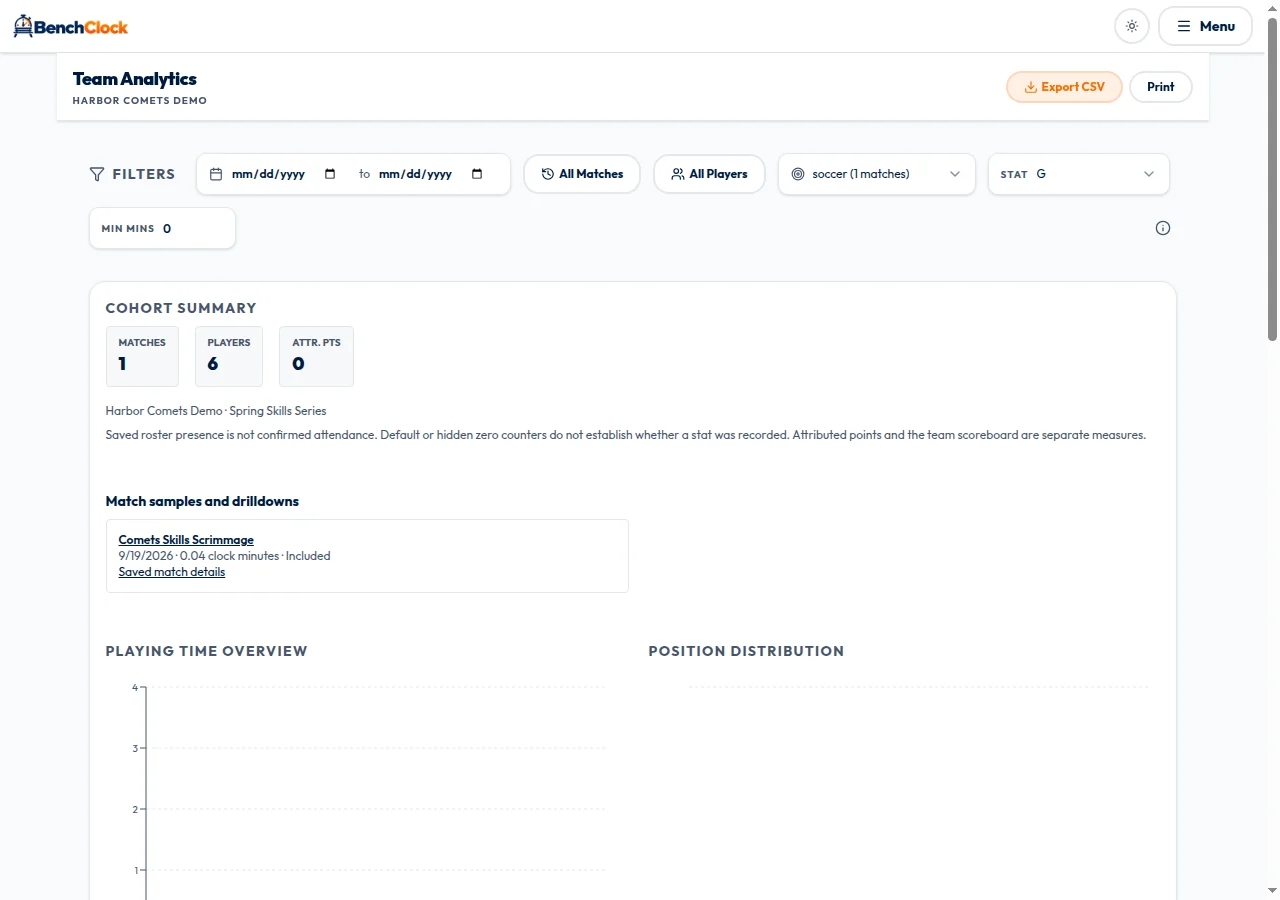
From the connected team or owned player context, use the appropriate analytics destination in the app's Menu. Confirm the report heading names the intended team or profile before changing filters. Team Analytics compares team players; Profile Analytics follows an explicitly linked owned identity across the teams your account is permitted to access.
Reports use finished connected matches with a recorded clock start. A match that was prepared but never began does not represent played time. If your expected record is missing, check whether it was actually started and finished before assuming a filter has removed it.
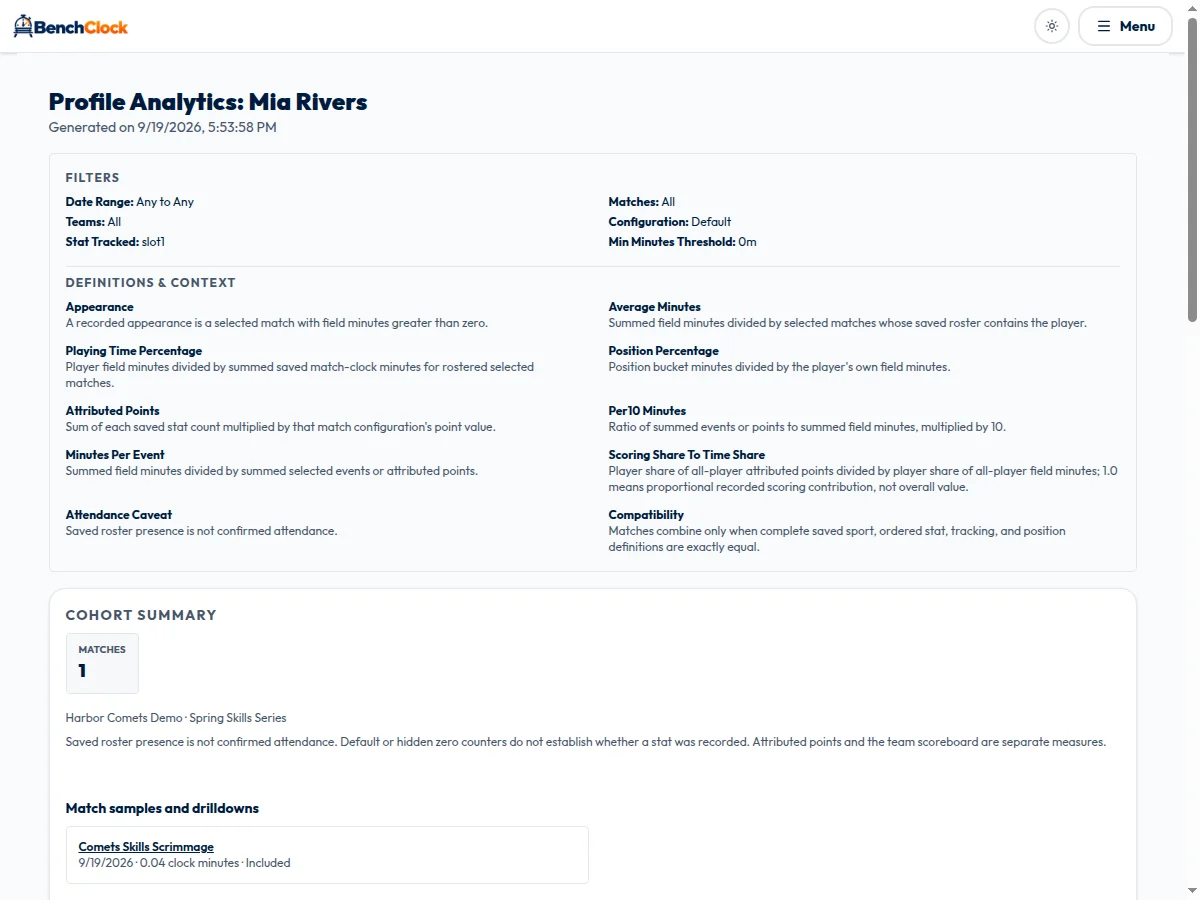
The screenshots include the real connected filter and Export CSV controls and the report's print layout. The synthetic source match lasted only a few seconds and has no recorded events, so the images document workflow and context rather than useful results. No downloaded CSV contents or browser print dialog are shown.
Apply the date, match, and player selections
Use the two date inputs to bound the reporting period. The report's match dates are associated with finished records, so check which completed matches the window actually includes. For a weekend review, select the relevant interval and verify the resulting match list rather than trusting an intended schedule.
Use Matches to choose individual records when a date range is too broad. For example, exclude an unrelated practice match from a tournament review by selecting the tournament matches explicitly. Use Players to focus the comparison. In Profile Analytics, the Teams selector provides an additional team/season scope.
Selection controls include Reset actions. Reset means returning that filter toward its unfiltered state, not necessarily selecting nobody. After any reset or checkbox change, inspect the selected counts and visible rows so you know what will be included.
Make one change at a time when diagnosing an unexpected result. A narrow date range, an explicit match selection, and a team selection can all limit the same record. Changing all three at once makes it harder to understand why it disappeared.
Choose a compatible configuration and meaningful stat
Use the configuration selector to choose the saved definition group you intend to analyze. Groups are based on complete saved sport, stat, tracking, and position definitions. Two groups may share a sport name while differing in how an event or position was defined.
Check any incompatible-match warning. Those records have not necessarily been lost; they are excluded from the combined calculation because their definitions differ. Exporting a file does not make incompatible measurements comparable.
Choose the Stat you want to inspect, then set Min Mins if you are reviewing rates. The minimum-minute value controls rate-comparison eligibility and low-sample treatment. It is not an attendance requirement or a universal threshold for a reliable player assessment.
As a fictional check, selecting a rebound event should produce a rebound event rate, not a scoring-rate interpretation. Attributed points remain based on saved point values. The scoreboard breakdown reconciles player-attributed scoring with other points and adjustments, so a difference between those values remains visible for review.
Export a CSV and preserve its context
When the report answers your intended question, select Export CSV. The download uses the current reporting parameters. If the download fails, the interface reports that it could not download the CSV; check your session and report state before retrying.
Open the file in a spreadsheet application and inspect its structure before building a chart. The export includes report scope, generation time, filters, configuration, units, and definitions, followed by sections for matches and players. It is not simply one flat player table beginning on the first row.
The match section includes an Included indicator alongside the saved configuration. This helps explain selected records that do not belong to the compatible aggregate. The player section includes raw minutes and events as well as calculated rates and rate eligibility.
Preserve units. CSV percentages are exported on a zero-to-one-hundred scale, and rates are per ten field minutes. Applying a spreadsheet percentage format that multiplies values again can misrepresent them. Treat unavailable values as unavailable rather than converting them into zeroes.
Keep an untouched copy of the export and create a separate working copy for formulas or charts. If you remove metadata for presentation, carry forward the date window, configuration, selected stat, and sample caveats in a short note.
Print a report with definitions attached
Select Print to open the browser's print workflow. Where your browser supports it, you can choose a printer or save to PDF. Preview the output before completing the action, especially when a wide player table spans multiple pages.
The print layout includes a report title, generation time, filters, and Definitions & Context. Keep those explanations with the chart or table. A page of rates separated from its date range and minimum-minute threshold is easy to misunderstand.
Check page size, orientation, scaling, and clipped columns in the preview. Browser print settings vary, so do not assume the first preview is the final layout you want. Remove unnecessary browser headers or footers if they reveal a private application URL.
Troubleshoot empty or inaccessible reports honestly
An empty result can mean no qualifying finished matches, a restrictive filter, or an incompatible configuration. An access error can mean the account lacks the required team role or does not own the profile. These are not reasons to fabricate a sample report or borrow someone else's login.
Try widening the date range, resetting selections, and reviewing configuration groups while remaining within your authorized scope. If the error persists, retain the non-sensitive error text for support. Avoid sending invitation tokens, spectator links, or a child's full history in a public bug report.
Finally, inspect the exported or printed artifact as a separate disclosure. Filter to the intended purpose, remove unnecessary information, and send it through an appropriate channel. Public recap output excludes private IDs, availability and correction details; a private CSV is coach data, and any downloaded copy is outside later revocation. Open the app only after you know who needs the report and what decision it supports.