
Start with the choice that affects everything else
A useful first setup is not the one with the most statistics. It is the one you can operate without wondering which player a name refers to or whether the clock is running. Before entering a roster, decide whether you need an account-free timer on this device or a connected team with saved matches and authorized access for other people.
BenchClock offers both paths. The Free Tracker is suitable for learning the timing controls without creating a team account. A connected team is the route for team administration, invitations, saved connected matches, and team reports. Do not assume names entered in the Free Tracker have automatically become a connected roster, or that a Free Tracker practice session will appear in connected analytics.
This is a product-maker walkthrough of BenchClock, not a recommendation that every team needs a connected service. If your immediate need is a single practice timer, rehearse locally first. If assistants or families need access, establish the connected team before match day.
Create a clearly named connected team
Open the app through the app link on this page and sign in for connected features. On Your Teams, select Create Team. The Create New Team dialog asks for Team Name and an optional season label. Use a name that the adults involved will recognize, and a season label that separates this squad from another year or competition.
For a fictional example, use Harbor Juniors and Autumn 2026. Avoid putting children's dates of birth, school details, or contact information in the team name. A season label is an organizational aid, not a rule that automatically moves players or rewrites historical records when the season changes.
If the team already exists under another coach, use the appropriate invitation or Join Team process rather than creating a second copy. A duplicate team can split match records and leave assistants looking at the wrong roster. Confirm which account is responsible for administering the team before adding everyone.
Add people, not just names
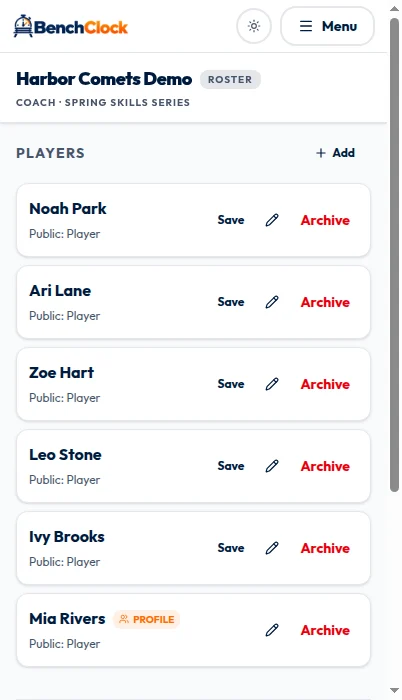
Open the team roster. A coach can select Add in the Players section. The add-player dialog offers From Library and New Player. From Library links a player profile you already own; New Player creates a roster entry for this team. If your library is empty, switch to New Player rather than assuming setup has failed.
Enter a recognizable display name and select Add Player. Check the roster after each addition. Two players called Alex need a safe distinction that your operators understand; a first name and initial may be sufficient. Do not solve a sideline identification problem by adding unnecessary personal information.
Library profiles matter when you want continuity across teams. If this is the same player you already manage through an owned profile, link that profile rather than creating another person with a matching name. Names are not an automatic identity-matching system. Team-created players may offer Save to place them in your library when permitted.
Review public display names separately before using spectator sharing. A name convenient for the coach is not necessarily the name you want visible to anyone holding a public match link. Decide your naming convention with the responsible adults before sharing, not after the first screenshot has circulated.
If you already built a Free Tracker roster in the browser, the connected team interface can offer an import that copies player names, preferred-position IDs, and the local tracker settings payload, including its field limit. It does not migrate the local clock, score, stats, substitution history, recaps, or saved matches. The source remains on this browser after import.
Review the import result rather than assuming matching names were merged. The server uses a stable source ID so retrying the same browser import is idempotent, but names alone are not identity proof. The native implementation is deliberately different: its import payload is roster-only, offers skip-or-keep duplicate handling, and excludes settings and position preferences.
Set the defaults your operator actually needs
Review team settings before preparing the first meaningful match. BenchClock includes soccer, basketball, hockey, and Other/Custom presets. Confirm the sport, the players-on-field limit, position tracking choices, and quick-stat definitions. Your league's permitted lineup size and substitution procedure still come from its rules, not from the app.
For a fictional soccer session with seven active places and ten available players, set the field limit to seven and verify that the full roster contains ten distinct people. That does not establish a legal match format; it simply makes your chosen tracking setup consistent. If a goalkeeper is one of those active places, include that player in your count.
Keep the first setup modest. Track positions only if someone can record changes reliably. Keep quick stats to events the operator can identify consistently. A smaller, trustworthy record is more useful than a busy screen filled with guesses.
Team defaults and saved match definitions serve different purposes. Changing today's labels does not make older records equivalent to new ones. Agree on definitions before accumulating matches if you expect to compare them later.
- Check the number of roster entries against the people you expect.
- Confirm the active-player limit rather than relying on the preset.
- Give similar names safe, recognizable distinctions.
- Review public names before enabling any spectator link.
- Choose one person to operate the match controls.
Do a short rehearsal before recording a real match
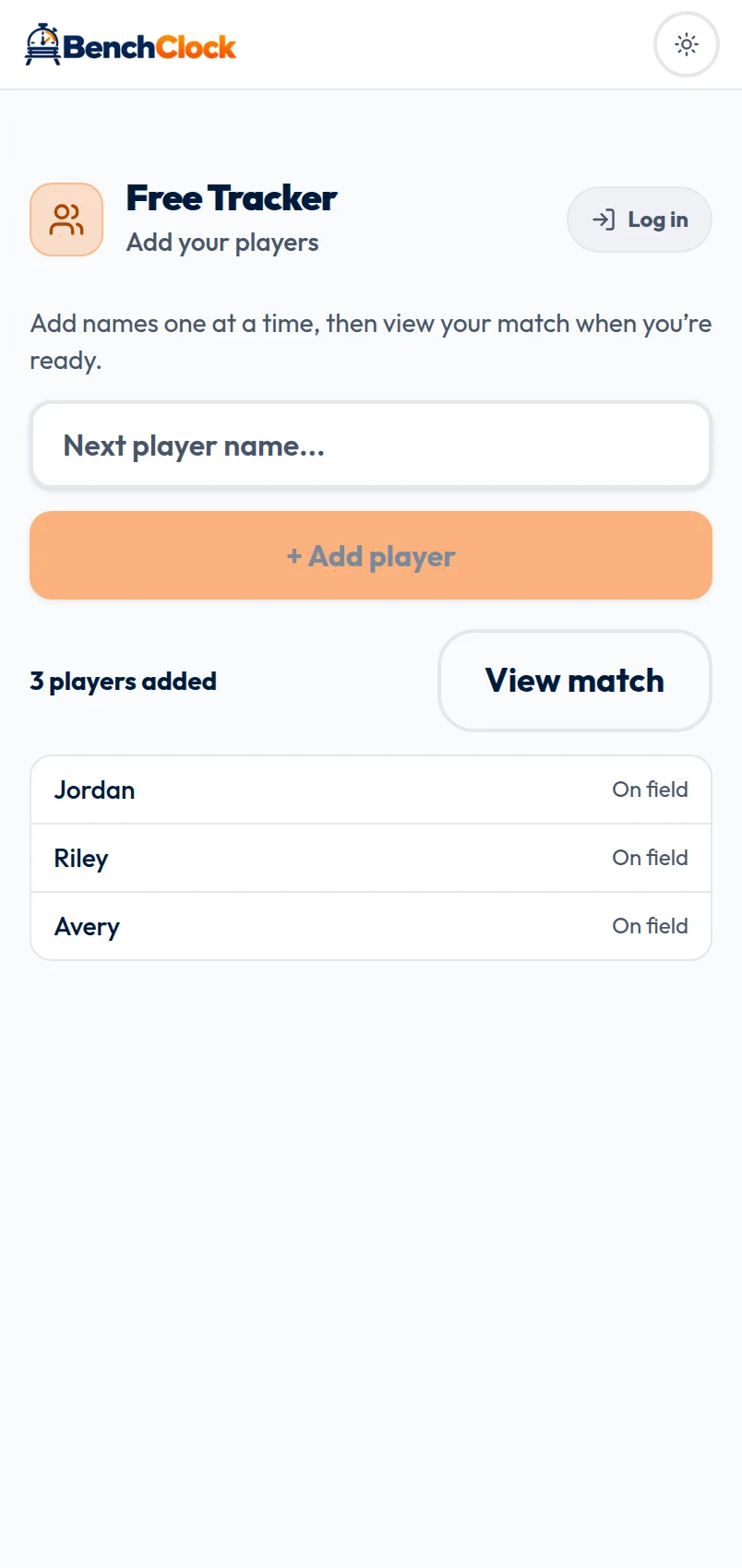
Use a disposable local rehearsal to learn the interaction without filling your connected history with test matches. Put a few fictional players on the field, start the clock, pause it, and open a player detail view. Practice moving one player out and another in. Confirm that you can distinguish field time, bench status, position time, and manual statistics.
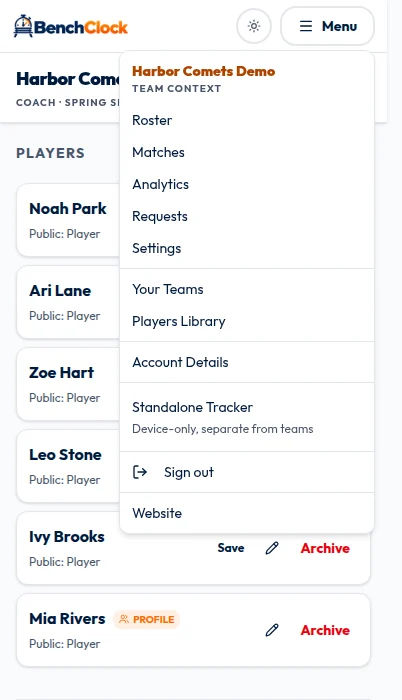
The screenshots include the signed-in demo team's connected roster and navigation, plus a Free Tracker roster editor for rehearsal. The connected roster contains synthetic names only. No Create Team form is shown.
When the rehearsal feels straightforward, return to the connected team and inspect the roster once more. A team can prepare a named match before play begins, but at least one player is required before its clock can start. Preparing is not the same action as starting. Do not advertise the native flow as generally available until an actual store release is verified.
Resolve setup problems before the sideline gets busy
If Add or settings controls are missing, check your team role and whether the team is archived. A family connection is not a coach account, and an assistant is not the same as the team administrator. Do not ask someone to share a coach's password to work around missing permissions.
If a library profile is absent, confirm that you are signed into its owning account. If a request fails, read the error and retry only after checking the result; repeated creation can leave duplicate records. Before your first match, you should be able to name the team, identify every player, explain the chosen stat labels, and point to the adult responsible for the clock. Open the app when those decisions are ready, then follow the match-lifecycle guide for the next step.