
Choose definitions before you collect numbers
Customization is most valuable when it makes a record clearer. Before changing a label, write down what the operator will count, when they will count it, and what a zero means. A stat called Effort is difficult to record consistently. A stat called Rebounds is more concrete, although your staff still needs to agree which events count.
BenchClock supplies soccer, basketball, hockey, and Other/Custom presets. These are starting configurations, not automatic sport recognition or a guarantee that every competition's scoring rules are configured for you. Other/Custom provides a way to tailor the existing tracker; it does not add native rules engines for every sport.
This guide explains BenchClock's actual settings and their consequences. It does not prescribe a universal stat model for youth teams. If a field makes recording harder without answering a coaching question, leave that extra detail out of your routine.
Select the sport and confirm what changes
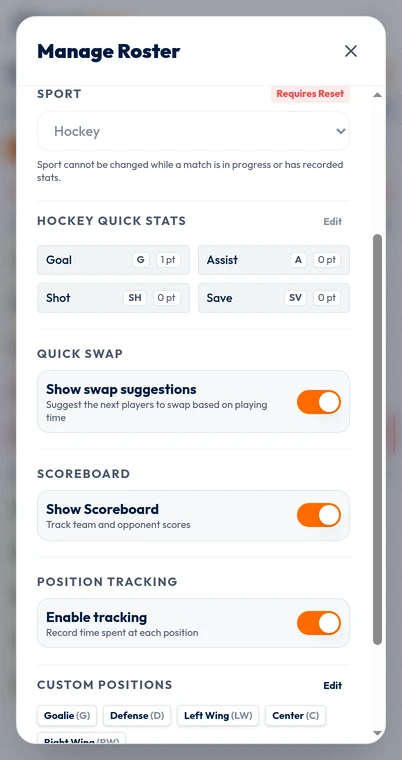
In the Free Tracker, open Tools, then Match settings for roster, sport and related tracking controls. Connected teams have coach-managed defaults, plus saved definitions for each prepared match. Learn locally with fictional data, then review the connected match before play.
Changing sports is not simply changing a page heading. The Free Tracker confirmation explains that a sport change replaces the position catalog and activates that sport's saved quick stats. Current and preferred position choices are cleared because they are not compatible with the new sport. The roster, field limit, and saved quick-stat customizations remain.
That retained field capacity deserves a separate check. Switching a demonstration roster from soccer to basketball does not mean the old active-player limit is appropriate. The default may be five, but the configured capacity is not capped there. Confirm the number against your intended session and local rules rather than assuming the preset has made every decision.
Finish any quick-stat edit before switching sports. The Free Tracker also disables the sport choice when a match has recorded time or stats, showing Requires Reset. Do not reset a valuable record just to explore another preset: a reset clears the Free Tracker match's tracking data. Rehearse configuration changes before the real session begins.
Distinguish active status, positions, and preferences
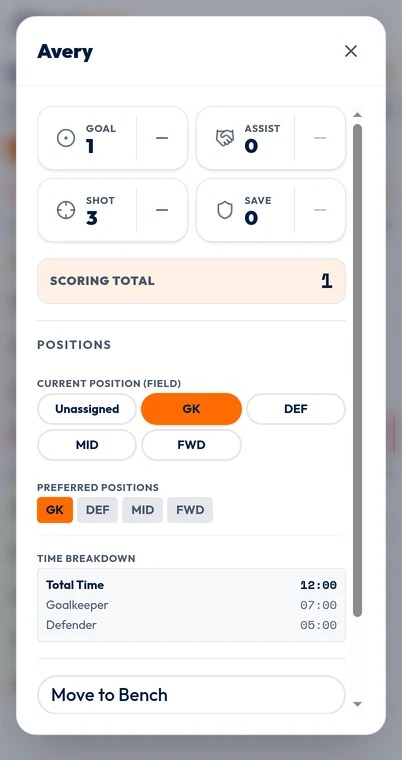
An active player is accumulating field time. A position describes the role assigned during some of that time. A preferred position is a planning choice, not evidence that the player actually occupied that role throughout a match. Keep these ideas separate when setting up your roster.
For example, a fictional player records twelve active minutes: eight as defender and four as goalkeeper. The position buckets describe the distribution of those twelve minutes, not twelve minutes plus another twelve of position time. A player moving from defender to goalkeeper needs a position update even if no substitution occurs.
If you customize the catalog, use labels that your staff can apply consistently. A specific tactical label is only useful if the recorder can distinguish it during play. Changing between Left Defender and Defender halfway through a series of matches can make later comparisons more fragmented than expected.
Not tracked and Unassigned are not coaching roles. They indicate limitations in how position information was collected. Do not silently divide those minutes among positions later to make a chart look complete. Explain the missing assignment and improve the next recording routine.
Give each quick stat a precise event definition
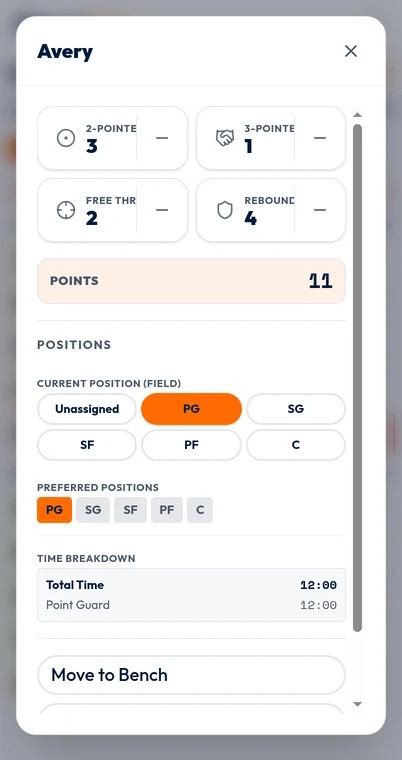
BenchClock quick stats use four slots with labels, short names, and point values. They are manual counts. The app does not identify a shot, assist, save, or rebound from video or from the match clock. Someone must decide that the event occurred and record it.
Write a one-sentence counting rule for each slot. For a basketball example, Made 2 counts one successful two-point field goal, not two taps because the shot is worth two points. Made 3 counts one successful three-point field goal. A point value then converts the event count into attributed points.
A non-scoring action can use a zero point value. Three recorded rebounds remain three events but contribute zero attributed scoring points. Zero does not mean the action was worthless; it means you have not defined it as a scoring event.
Do not combine unlike events into one label unless that combined count is the question you actually want to answer. A slot called Shots and Saves would be difficult to interpret because an increase could represent two entirely different activities.
- Name the observable event rather than an impression of the player.
- Agree whether one tap means one event or one scoring unit.
- Use short names that remain understandable on a phone.
- Check each point value with a tiny fictional example.
- Give the assistant the same counting definitions.
Check arithmetic without confusing it with the scoreboard
Suppose a fictional player records two Made 2 events and one Made 3 event. With point values of two and three, attributed points are two times two plus one times three, or seven. The event total for Made 2 is still two. Those are two legitimate numbers answering different questions.
Scoring stats automatically update Us on BenchClock's game scoreboard. The breakdown also reconciles other points and adjustments, including existing saved scores, manual corrections, removed players or changed stat definitions. Them remains coach entered.
Before the first real match, enter a small synthetic example locally and calculate the result by hand. If your expected total and the displayed meaning differ, fix your definitions before a full match makes the discrepancy harder to diagnose.
Protect comparisons across saved matches
Connected reports group matches by their complete saved definitions. Compatibility depends on the saved sport, ordered stat definitions, tracking settings, and position definitions being exactly equal. Two matches can both say soccer and still belong to different configuration groups.
This protects you from combining a slot that meant Assists in one match with a slot that meant Saves in another. A later settings change does not retroactively prove that historical data was collected under the new definition. Even a seemingly minor catalog edit can therefore affect which records combine.
When a real change is necessary, make it deliberately between matches and keep a plain-language note of the date and reason. Compare like with like. If a report warns about incompatible matches, inspect the groups instead of treating the warning as missing data to be bypassed.
Use a small configuration checklist
Before saving the setup, ask another adult to explain each stat using only its label and your counting rule. If the explanation differs from yours, simplify the definition. Confirm that the field limit, position catalog, and public names match the session you are about to record.
The images here are real local editors with fictional data, not authenticated settings or analytics captures. Open the app to try a small local configuration, then carry only the useful choices into your connected team. Consistency over several matches is usually more informative than a large menu of changing measurements.