Know what the Free Tracker saves
Open the Free Tracker when you need a sideline timer on the current browser without signing up. Its roster, settings, saved setups, finished-match history and current match are stored locally on this device. They are not a connected team, are not synchronized to another phone, and can be lost if browser storage is cleared.
That boundary makes the tracker useful for a rehearsal or a self-contained match, but it changes your backup plan. Keep a simple paper record when the event matters, and export the finished recap before clearing site data or changing devices. Signing in later does not automatically turn the local match into connected history.
Add the people who may take part
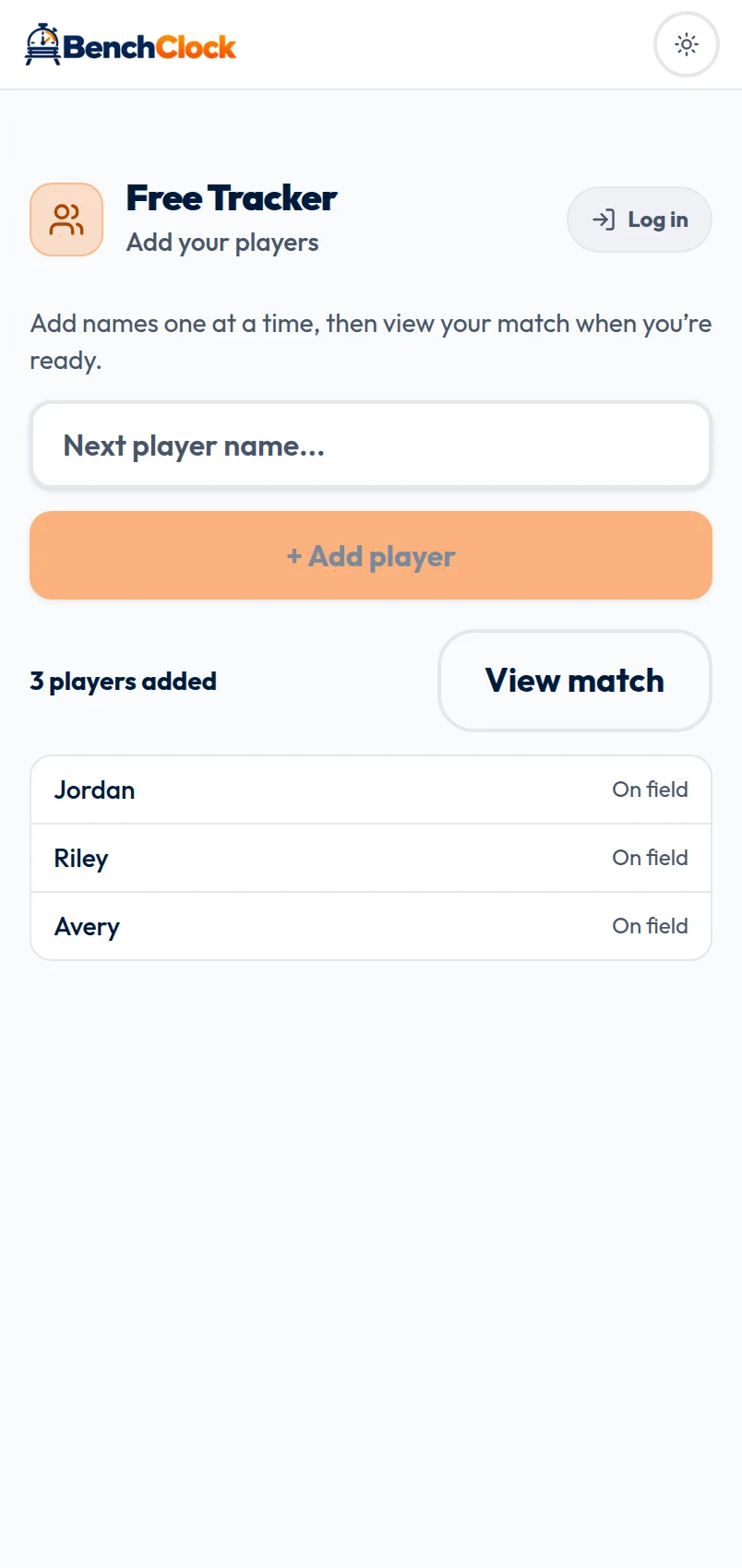
The first screen keeps roster entry open instead of forcing a one-player dialog. Type a recognizable name, choose + Add player, and repeat. The growing list lets you catch a duplicate or misspelling before entering the match. When the list is ready, choose View match; if text remains in the box, Add & view match adds it first.
Use only the identifying detail the operator needs. Two players with the same first name may need an initial, but a youth roster does not need contact information in a display name. You can return to Add players from Prepare or use + Add player beside the Bench heading before the match is finalized.
Each player begins available. Later, a player's detail sheet can mark them Available, Not arrived, Injured, or Left early. An unavailable player keeps recorded time but cannot enter new substitutions or rotation proposals.
- Check spelling and duplicate names.
- Include every likely participant before planning.
- Use availability for a real absence, not as a playing-time penalty.
- Keep a paper fallback for an important event.
Use Prepare while the clock is stopped
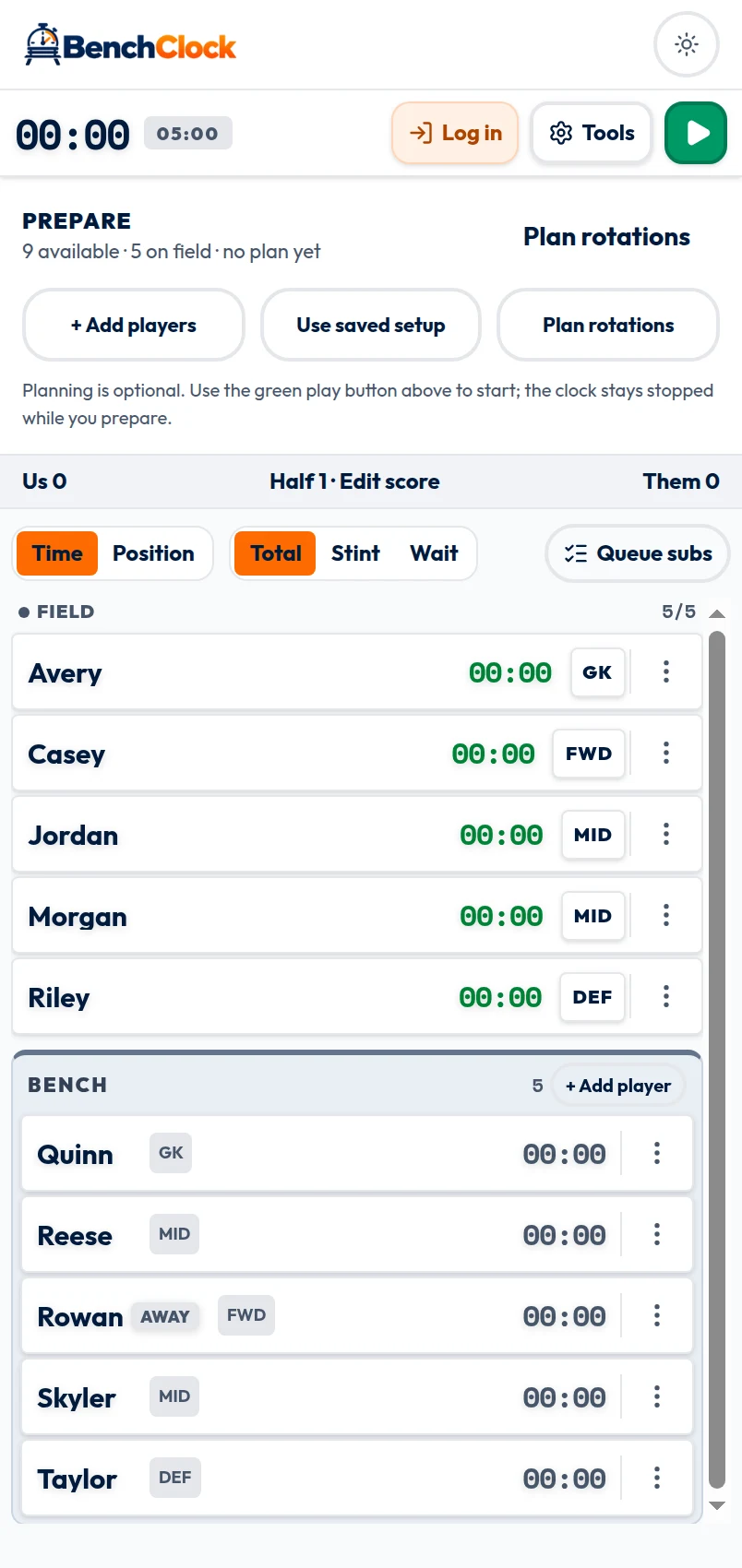
The Prepare strip presents Add players, Use saved setup, and Plan rotations in that order. Only the roster is required. A saved setup can apply reusable sport, capacity, position, quick-stat, reminder and starting-lineup choices before kickoff. A rotation plan can propose future groups and expected minutes. Neither action starts the clock.
Open Tools, then Match settings to confirm sport, field capacity, position tracking, quick stats, scoreboard and display choices. Field capacity is configurable; five is a common default, not a hard maximum. Set the opening players on the field and mark anyone absent before generating a plan.
Plans are proposals. Loading the next group places its pairs into the substitution queue, where the operator must review and confirm them when the real change occurs. The application does not move players merely because a planned minute arrives.
Start, pause, and record the real lineup
Press the green play control at the real start. It changes to pause while the match clock runs. BenchClock does not synchronize itself to the venue clock, so decide whether your record pauses for stoppages and use that convention consistently.
For a one-for-one substitution, select the outgoing Field player and incoming Bench player, then confirm the swap. If the lineup is below capacity, an available bench player can be added without an outgoing player. A field player can also be sent to the bench without replacement when the real team is playing short.
Total shows accumulated participation. Stint shows the current uninterrupted active interval. Wait shows eligible bench waiting time; it stops being meaningful when a player is unavailable. These are display modes, not separate clocks, and changing the mode does not alter the record.
Quick stats are manual observations, and scoring values can update Us. Them and unassigned score corrections remain coach entered. Prefer a smaller complete record to guesses made while attention is elsewhere.
Use Match tools for deliberate match-day actions
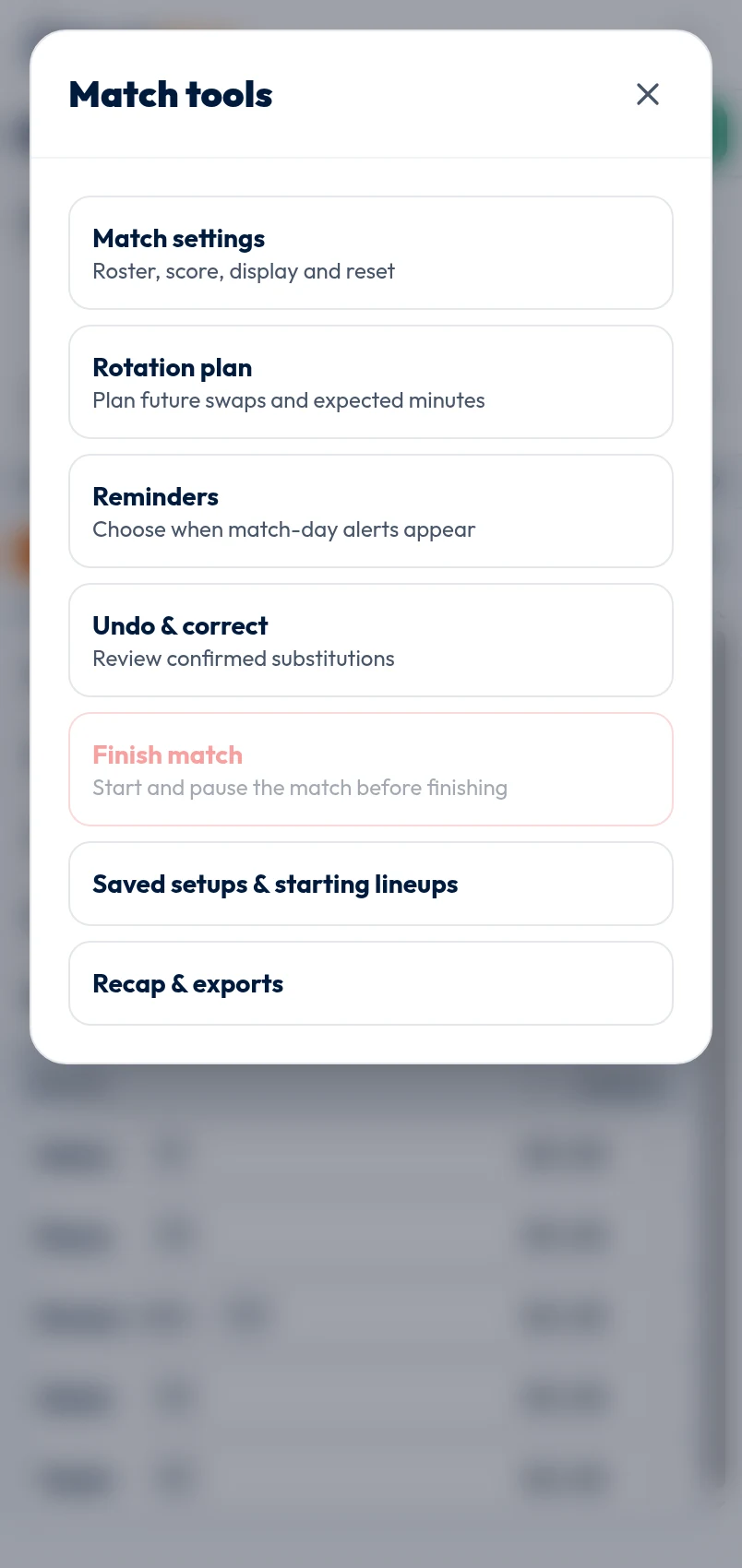
Tools opens Match tools, where Match settings appears first, followed by Rotation plan, Reminders, Undo & correct, Finish match, Saved setups & starting lineups, and Recap & exports. Availability remains in each player's detail sheet. No tool applies a substitution without confirmation.
Optional reminders show an advance warning and a due alert based on elapsed playing time. On the web they work only while the page remains open, and browser or device restrictions may block sound or vibration. Treat the visual alert as the dependable fallback and never treat a reminder as proof that a substitution occurred.
If a journaled substitution was entered at the wrong elapsed time, Undo & correct can preview a safe correction. Player and position totals are recalculated; the live clock, score and stats stay unchanged. Only eligible evidence can be edited, and undo is limited to the latest valid substitution.
Finish, review, and keep the right copy
Pause after real play ends, inspect the lineup, score and obvious stat entries, then choose Finish match. Finishing requires recorded time and makes the local match read-only. Reset is required before further play, while the finished record remains in local history on this device.
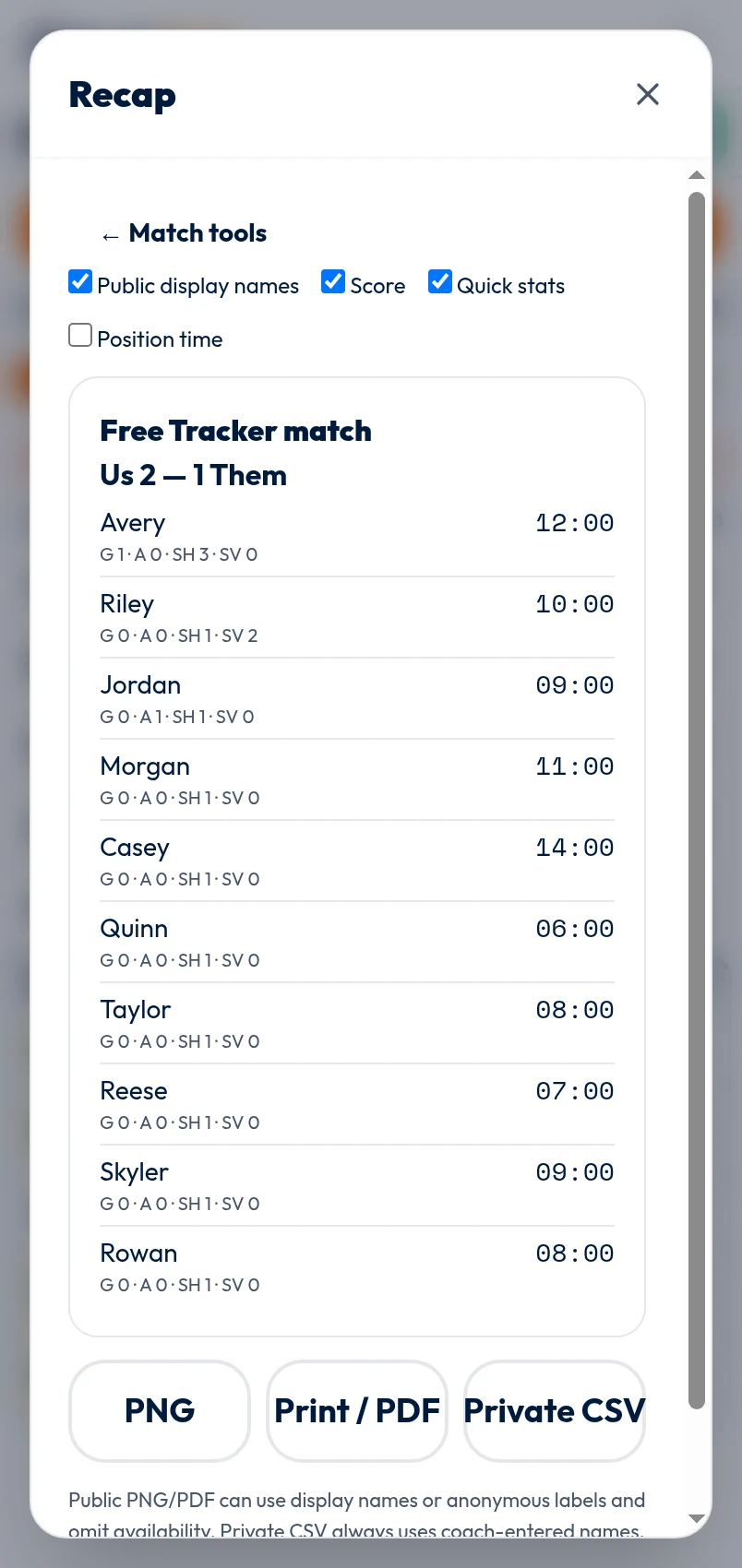
Recap & exports can show the current match or a retained local match. Choose whether the public recap includes score, quick stats, position time and player display names. PNG and Print / PDF are public-oriented copies; the private CSV always uses coach-entered names. Downloaded files cannot be revoked.
If you need account-backed teams, authorized collaborators and cross-match analytics, create or join a connected team instead. The browser import can explicitly copy a local roster and settings payload, but it does not migrate the clock, score, stats, substitution history, recap or finished match.